Regalis NDA Tracker
The complete guide to how the tracker works, what every screen and button means, and exactly what to do each day — written for associates, team leads, and management.
What this tool is
The NDA Tracker monitors every client’s deal mailbox and surfaces three things in one place: outstanding NDAs that still need to be signed, email health (genuine unread client mail that needs action), and scheduling-call replies so your M&A coordinators never miss a broker response.
When a broker or marketplace sends a client an NDA (or e-sign request) for a specific deal, the tracker detects it and lists it as outstanding until it is signed. Your job is to act on that list: get the NDA signed, mark it done, or pass on the deal. The tracker re-checks every mailbox once an hour, so the list stays current on its own.
Logging in
There is no password. You sign in with a one-time 6-digit code emailed to you each time.
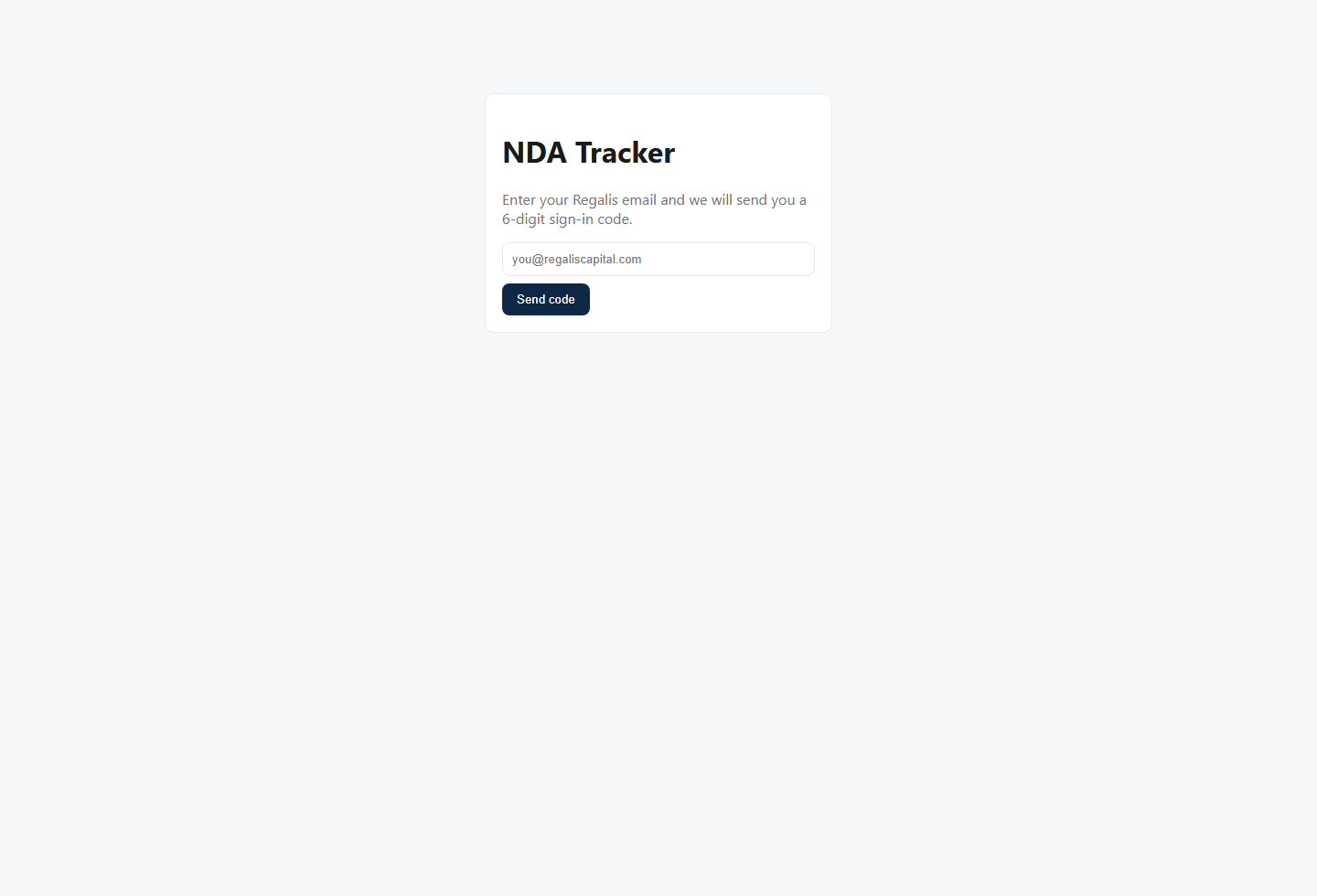
- Go to ndatracker.regaliscapital.com.
- Enter your Regalis work email and click Send code.
- Check your email for a 6-digit sign-in code, type it in, and click Sign in. That is it — you are in.
- You land on the view for your role automatically. Associates see My NDAs; team leads and management see Team NDAs / Overview.
Your tabs are in the left-side menu. On a phone, tap the menu icon (top-left) to open it; pick a tab and it closes. The Guide link and Sign out are always in the top bar. Management also has the View as switcher in the top bar.
If we do not recognize your email, contact management — your login has to be added first (see Logins). If you sign in but see “your account has no access role configured,” your login needs a role assigned, same place.
Core concepts (everyone should know these)
Outstanding NDA
A real NDA / confidentiality agreement for a specific deal that the client has not signed yet. This is the heart of the tracker — the count of outstanding NDAs is the work to be done.
“Likely already signed” hint ⚠ likely signed
The system found what looks like a signed/completed confirmation for that deal but could not link it with 100% certainty (for example, the signed copy came from a different e-sign vendor than the request). Rather than hide it — which could bury a real one — it flags it for you to review and clear in one click. Treat these as “probably done, please confirm.”
The 14-day window
The board focuses on NDAs from roughly the last two weeks. Older requests that were never signed and never cleared stay until handled (they are overdue and worth chasing), but the freshly-detected work is always recent.
SLA (how urgent it is)
Each item is timed in business hours (weekday hours, Eastern). The tracker labels each: On track (new), Approaching (past 6 business hours), Overdue (past ~3 business days). Work red first.
Your screen, top to bottom
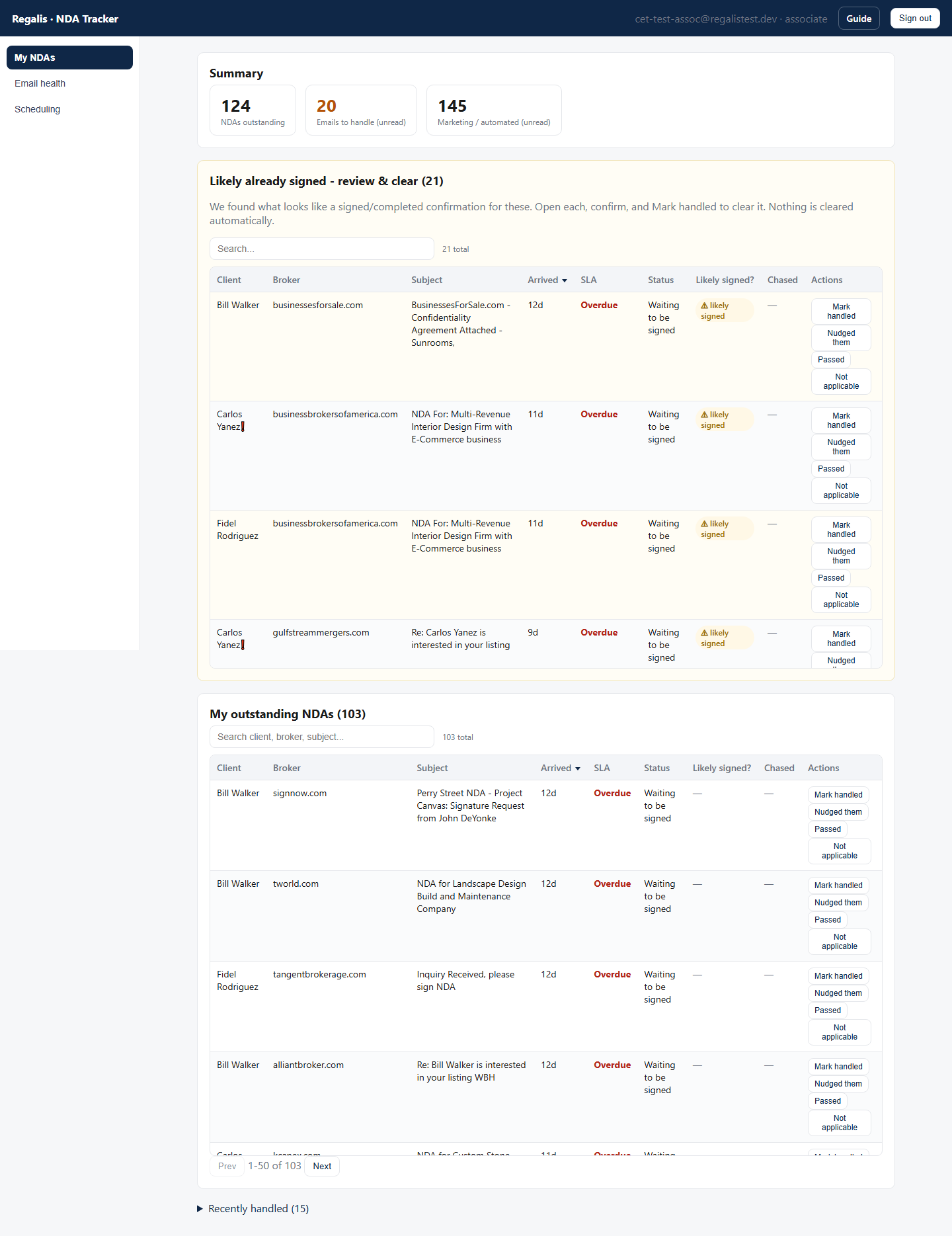
When you sign in you see My NDAs — only your assigned clients. The page is a set of stacked cards, in priority order:
| Card | What it is & what to do |
|---|---|
| Needs a look if any | The system was unsure these are NDAs. Keep the real ones so none slip through (see the three review buttons below). Only appears when there is something to review. |
| Likely already signed — review & clear | Outstanding items the system thinks are already signed. Open each, confirm, and Mark handled to clear it. Do these first — it keeps your real count clean. |
| My outstanding NDAs | Your genuine to-do list: NDAs a client still needs signed. This is where you spend your time. |
| Pre-existing backlog (triage these) if any | NDAs that existed before the tracker went live. Triage them once: sign, mark handled, or pass. |
| Recently handled | A collapsible history of what you have cleared — including anything you marked Not applicable. Click to expand. Read-only. |
Every column, explained
| Column | Meaning |
|---|---|
| Client | The client (buyer) whose mailbox this NDA was found in. unassigned means the client has no associate yet — tell your team lead. |
| Broker | The brokerage / counterparty that sent the NDA. The Subject column tells you which deal or listing it is about. |
| Subject | The email subject line of the request. Click any cell to copy its full value. |
| Arrived | When the request actually landed in the inbox (e.g. 17h, 3d) — the real email time, not when the tracker saw it. |
| SLA | On track / Approaching / Overdue — how urgent, in business hours. |
| Status | Plain-English state of the item (see the glossary): e.g. “Waiting to be signed”, “Waiting on other side”, “Marked done (confirming)”. |
| Likely signed? | ⚠ likely signed if the system found probable signed evidence (hover for the evidence). A dash — means no signal — treat it as genuinely outstanding. |
| Chased | When you last nudged the broker (e.g. “chased 2d ago”). Turns to “stale” after a week so you know to follow up again. |
| Actions | The buttons you act with (next section). |
Every button, explained
| Button | When to use it — and exactly what happens |
|---|---|
| Mark handled | The NDA is done. A box asks “Did you sign / return it?” — click OK if it is signed (status → “Marked done (confirming)”), or Cancel if you have signed your side and are waiting on the other party (status → “Waiting on other side”). |
| Nudged them | You chased the broker/client to get it signed. Stamps “chased today” in the Chased column so the team can see follow-up is happening. Use it every time you reach out. |
| Passed | The deal is dead / not pursuing. Confirms, then removes it from outstanding (status → “Passed”). Use this so dead deals stop cluttering the board. |
| Not applicable | The row is not really an outstanding NDA — a false positive. Examples: a marketing blast the detector mistook for an NDA request, something that was already signed before tracking began, or a plain mis-detection. Confirms, then removes the row from your queue (status → “Not applicable”) and logs structured feedback that management reviews monthly to tune the detection engine — so every click here makes the tracker more accurate. The row stays findable under Recently handled (read-only). There is no undo button in the dashboard, so if you mark one by mistake, flag it to management and they will restore it. |
| Yes, confirmed | Appears on items you marked done a few days ago that still need final confirmation. Click it to confirm it is fully signed (status → “Done / signed”). |
| Still open | The companion to “Yes, confirmed” — it was not actually done; sends it back to your outstanding list. |
The “Needs a look” review buttons
| Track it | Yes, this is a real NDA — add it to the outstanding list and track it. |
| Already signed | This NDA is already done — mark it signed and clear it. |
| Not an NDA | This is not actually an NDA (e.g. marketing, a buyer-profile form). Confirms, then drops it. Only do this when you are sure. |
What to click when (classification guide)
| Situation | Do this |
|---|---|
| The client signed the NDA (or you returned a signed copy) | Mark handled → OK |
| You signed your side; waiting on the broker/seller to countersign | Mark handled → Cancel |
| You emailed/called the broker to push it along | Nudged them |
| The client is not pursuing this deal | Passed |
| The row is not a real outstanding NDA at all (marketing blast, already signed before tracking, mis-detection) | Not applicable |
| It is flagged ⚠ likely signed — check the inbox, it is signed | Mark handled → OK |
| It is flagged likely signed but is actually NOT signed | Leave it — keep chasing it like any outstanding NDA |
| An item in “Needs a look” is a real NDA | Track it |
| An item in “Needs a look” is not an NDA at all | Not an NDA |
Your daily & weekly routine
Every day
- Open My NDAs.
- Clear the Likely already signed card first — confirm each in the inbox and Mark handled the ones that are signed.
- Work your outstanding NDAs, starting with Overdue (red), then Approaching: chase the broker, get the NDA signed, then Mark handled.
- Hit Nudged them every time you reach out, so follow-up is visible.
- Pass any deals the client has decided not to pursue, and mark Not applicable anything that is not really an outstanding NDA.
- Clear anything sitting in Needs a look.
Every week
- Triage the Pre-existing backlog until it is empty.
- Re-chase items showing a stale “Chased” (older than a week).
- Make sure nothing has been sitting Overdue untouched.
- Flag any unassigned clients to your team lead.
The Unanswered emails tab
The Unanswered emails tab surfaces times a broker or seller asked your client a real question, or asked for a document, and there is no reply yet — so a live conversation never goes cold while you are heads-down on NDAs. Marketing blasts, automated notices, and rhetorical or courtesy check-ins are filtered out, so what is left is genuinely worth answering.
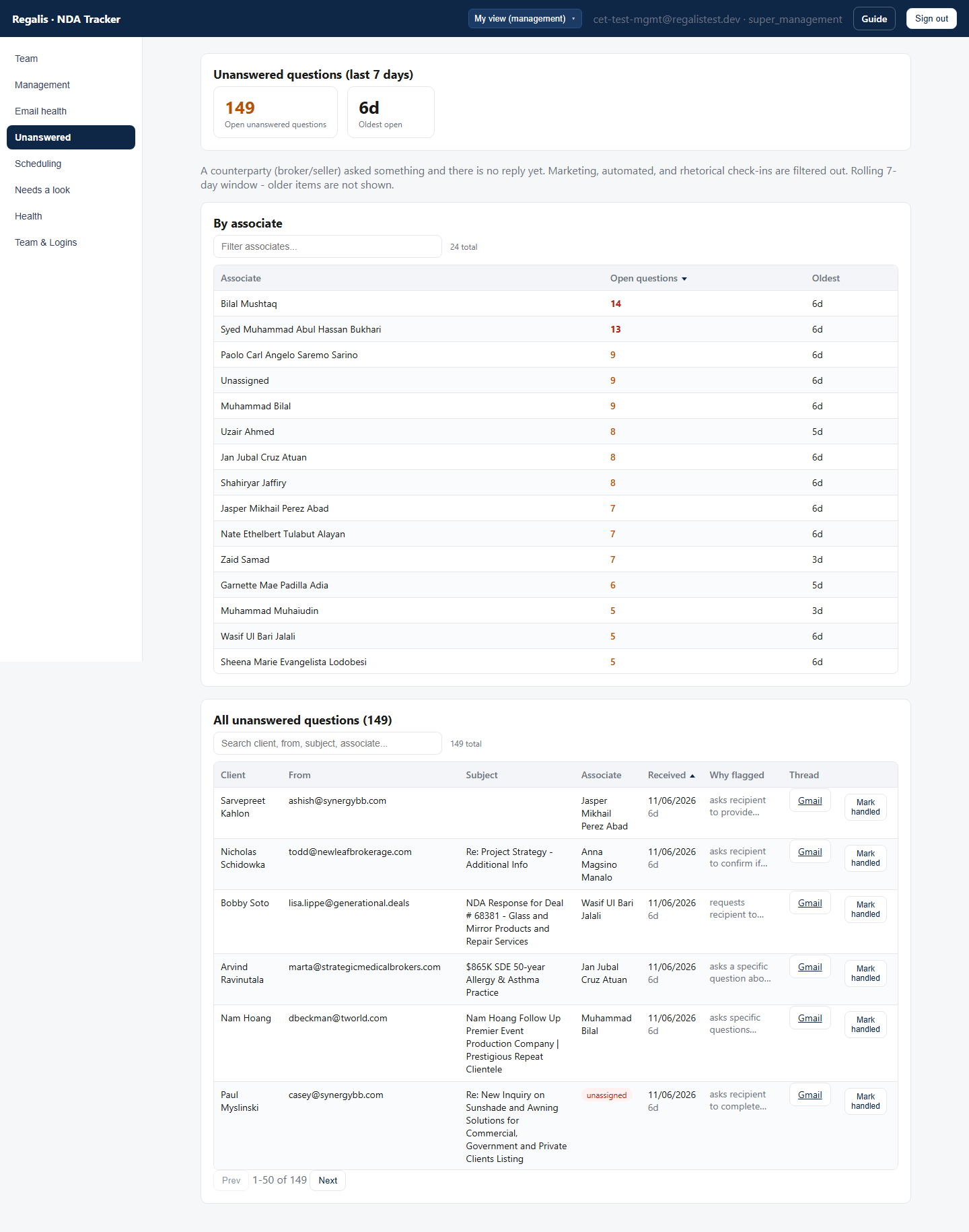
How to read a row
| Column | Meaning |
|---|---|
| Client | The client (your buyer) whose mailbox the question landed in. |
| From | Who asked — the broker or seller’s email address. |
| Subject | The email subject line, so you know which conversation it is. |
| Received | When the question actually arrived, and how long ago (e.g. 2d). |
| Why flagged | A short plain-English reason the system surfaced it (e.g. asked for a signed NDA, requested a proof of funds, asked to set a call time). Hover to read the full note. |
| Thread | A Gmail link that opens the exact conversation in Gmail so you can reply. |
Clearing one
Once you have replied (or it no longer needs an answer), click Mark handled on the row. It confirms, then leaves the unanswered queue. The system also clears a question on its own if it detects a reply went out, so the list stays honest either way.
The Team NDAs view
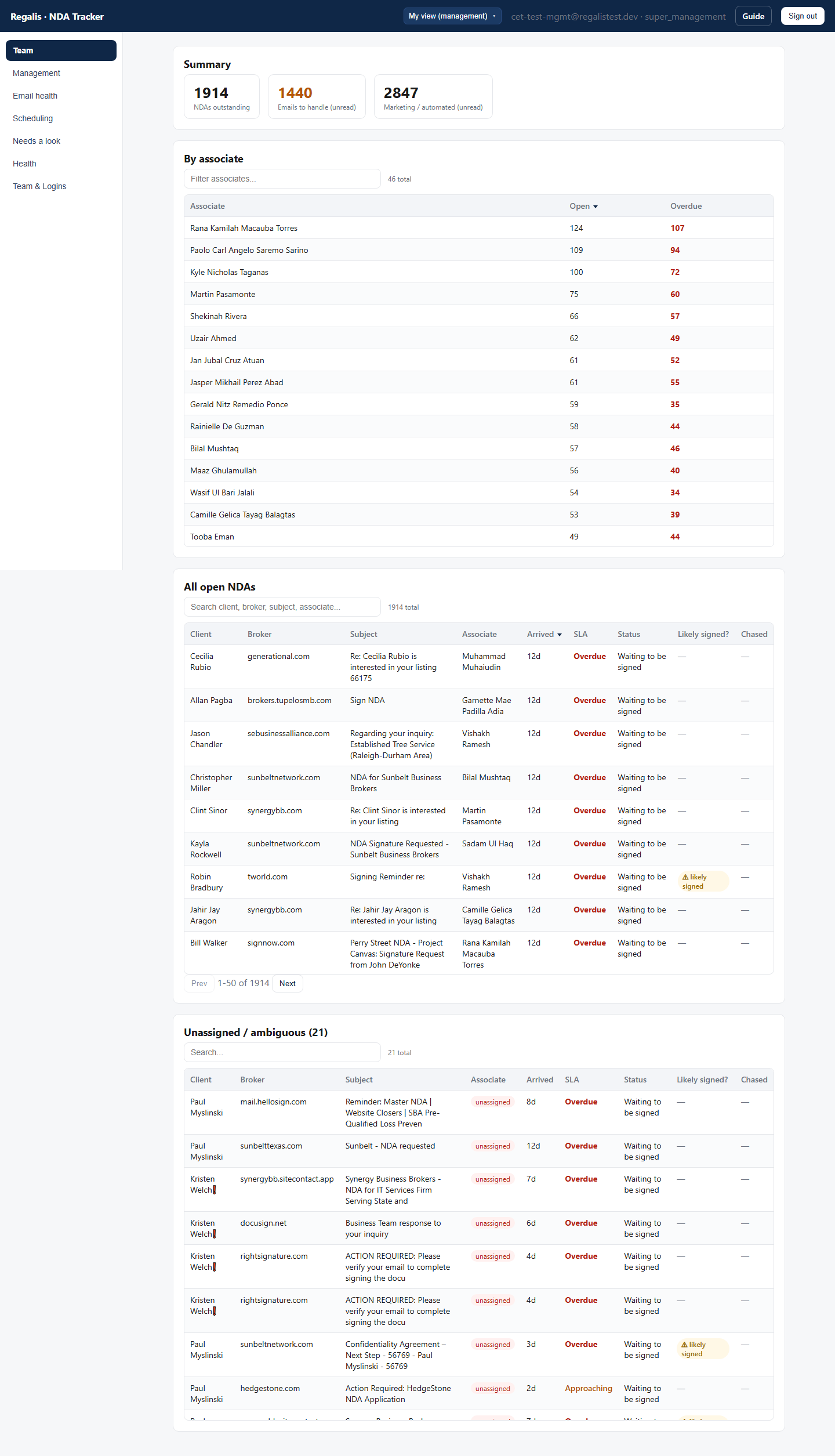
Team leads see the Team NDAs tab — a roll-up of every associate on your team plus all their open NDAs. You see your team’s work; you do not have a personal NDA list.
| Section | What it tells you |
|---|---|
| By associate | Each associate’s Open count and how many are Overdue (red). Spot who is overloaded or falling behind. Click a column header to sort. |
| All open NDAs | Every open NDA across your team, with the associate shown. Search by client, broker, subject, or associate. |
| Unassigned / ambiguous | NDAs we could not confidently tie to one associate. Get these assigned so they are worked. |
The columns and SLA colors are the same as the associate view (see Every column).
Mailbox health
The Mailbox health tab shows operational gaps for your team — mailboxes the tracker cannot read yet, and clients with no associate. Chase these so coverage stays complete (details under Management → Mailbox health).
Your daily & weekly routine
Every day
- Open Team NDAs → By associate; check who has Overdue items and follow up with them.
- Scan All open NDAs for anything stuck or aging.
- Make sure Unassigned items get picked up.
Every week
- Check Mailbox health for mailbox gaps or no-associate clients on your team and resolve them with management.
- Rebalance load if one associate is consistently overloaded.
The tabs
Management sees every tab. Here is what each one is for, in order:
| Tab | Purpose |
|---|---|
| Team NDAs | The team roll-up and all open NDAs (same as the team-lead view). |
| Overview | The high-level dashboard: company-wide KPIs and the overloaded-associates worklist. |
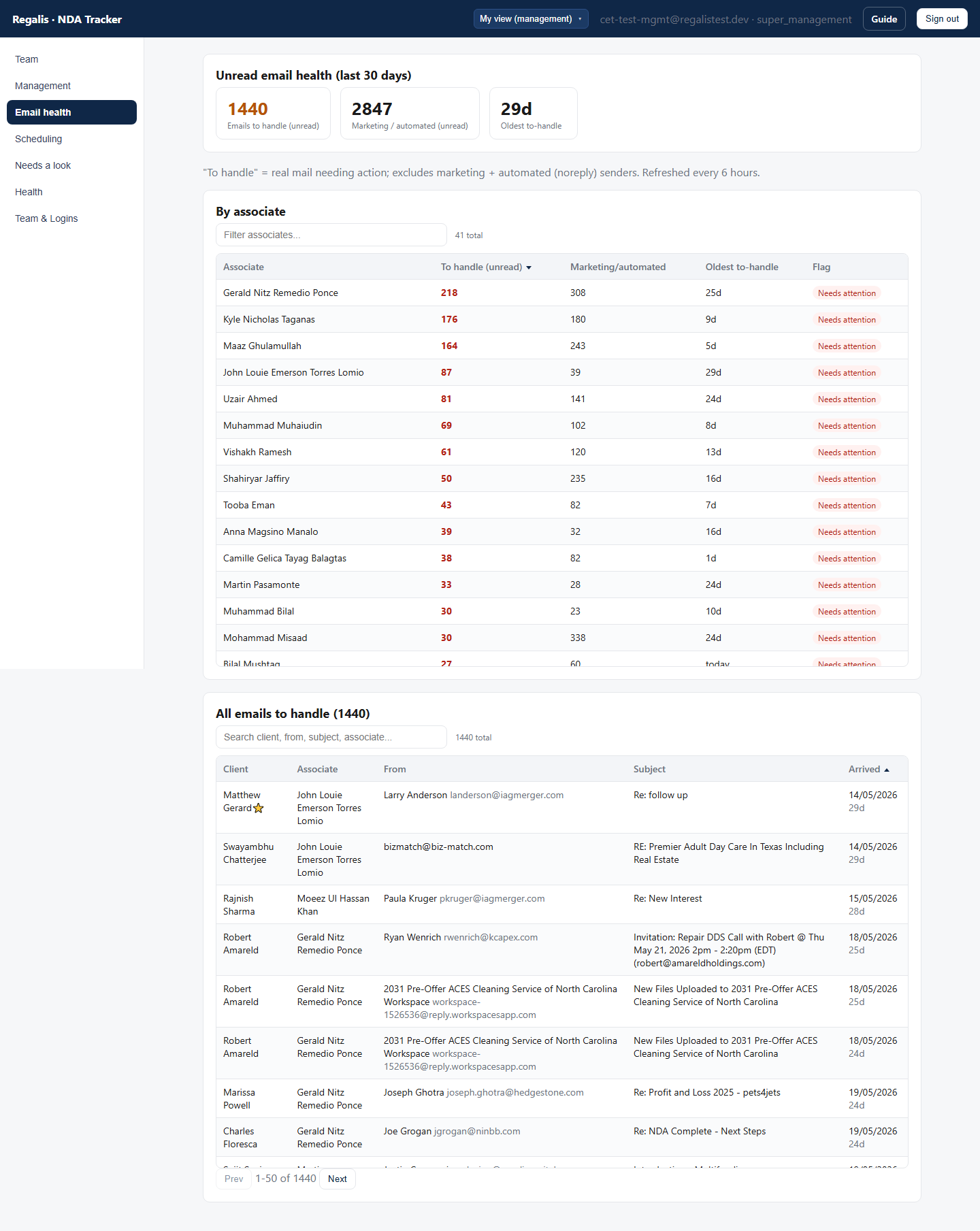
| Unread emails | Unread client mail over the last 30 days, split into “to handle” vs. marketing/automated, with red/yellow flags per associate. |
| Unanswered emails | Broker/seller questions and document requests to clients with no reply yet, over a rolling 7 days — by associate plus the full list. See The Unanswered tab. |
| Scheduling | Calls being tracked for booking — surfaces broker and seller replies across every monitored inbox. |
| NDAs to review | The review queue of items the classifier was unsure about. A number badge shows how many are waiting. |
| Mailbox health | Operational health: mailbox gaps, clients without an associate, and mailbox-sync status. |
| Logins | Administration (super_management only): create/manage logins, set roles, map associates to team leads, assign coordinators to a coordinator lead, add people. |
management for people who need full visibility but should not manage accounts. Team leads can use View as to see any of their own associates’ screens.The Management dashboard — every KPI
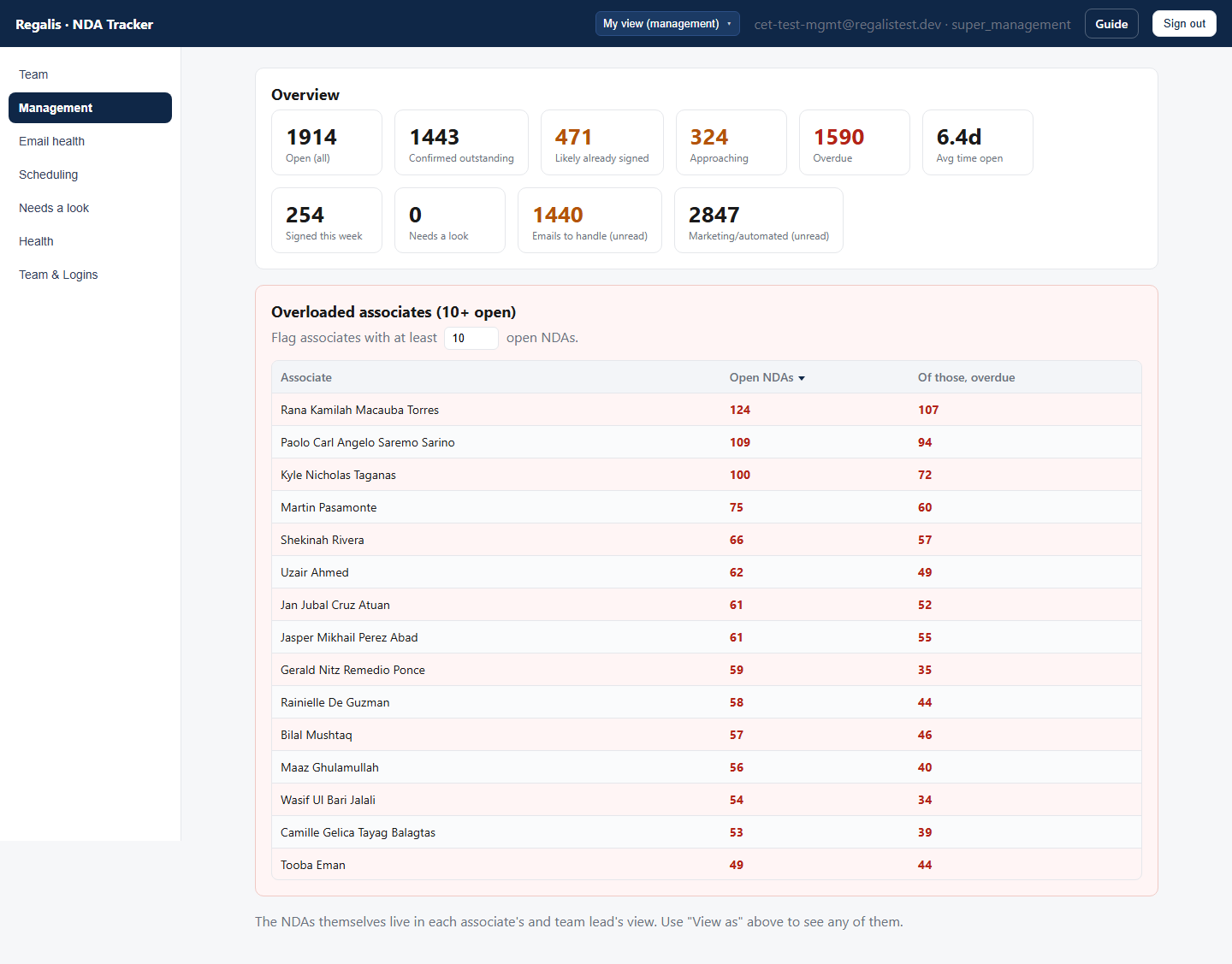
Overloaded associates
Lists associates at or above the threshold (default 10 open NDAs), with their open and overdue counts. Change the threshold in the box to re-flag. Use this to rebalance workloads.
“View as” — see any associate or team lead’s screen
The View as dropdown (top right) lets you preview the dashboard exactly as any associate or team lead sees it — handy for support and spot-checks. Click the button and a panel opens with the full list (yourself, every team lead, every associate), with a search box at the top of the panel: type a few letters to filter, then click the person. Press Escape or click anywhere outside to close it. Actions still run as you. Pick “View as: Management (me)” to return. Team leads have the same picker, scoped to their own associates.
Unread emails
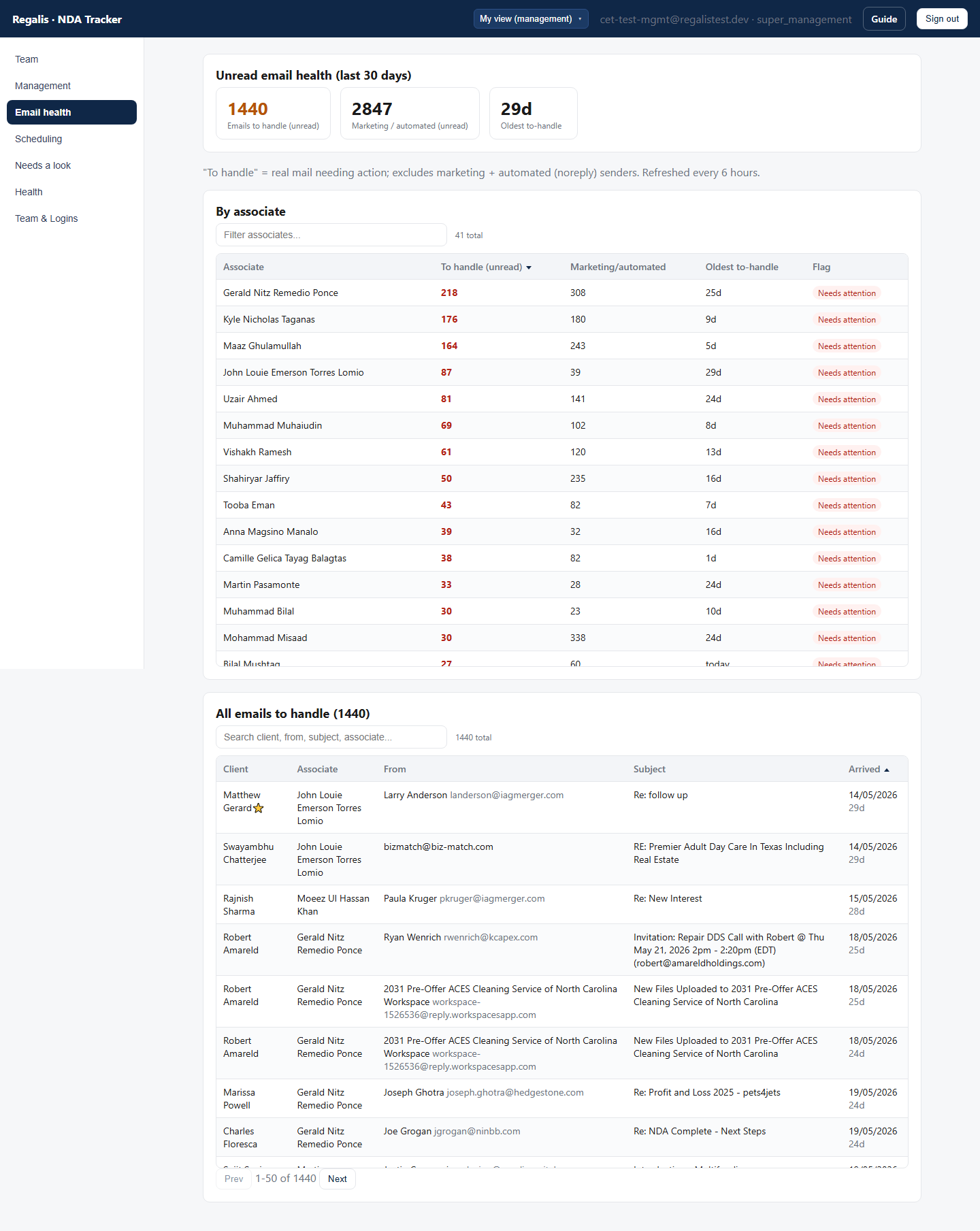
The tab shows two numbers per client and associate: “Emails to handle” and “Marketing / automated.” Management sees the whole team with flag indicators; team leads see their own associates; associates see only their own inbox. The data refreshes a few times a day.
Use this tab to spot clients whose real mail is building up unread — separate from the NDA board — so nothing actionable gets buried in the inbox.
NDAs to review (the review queue)
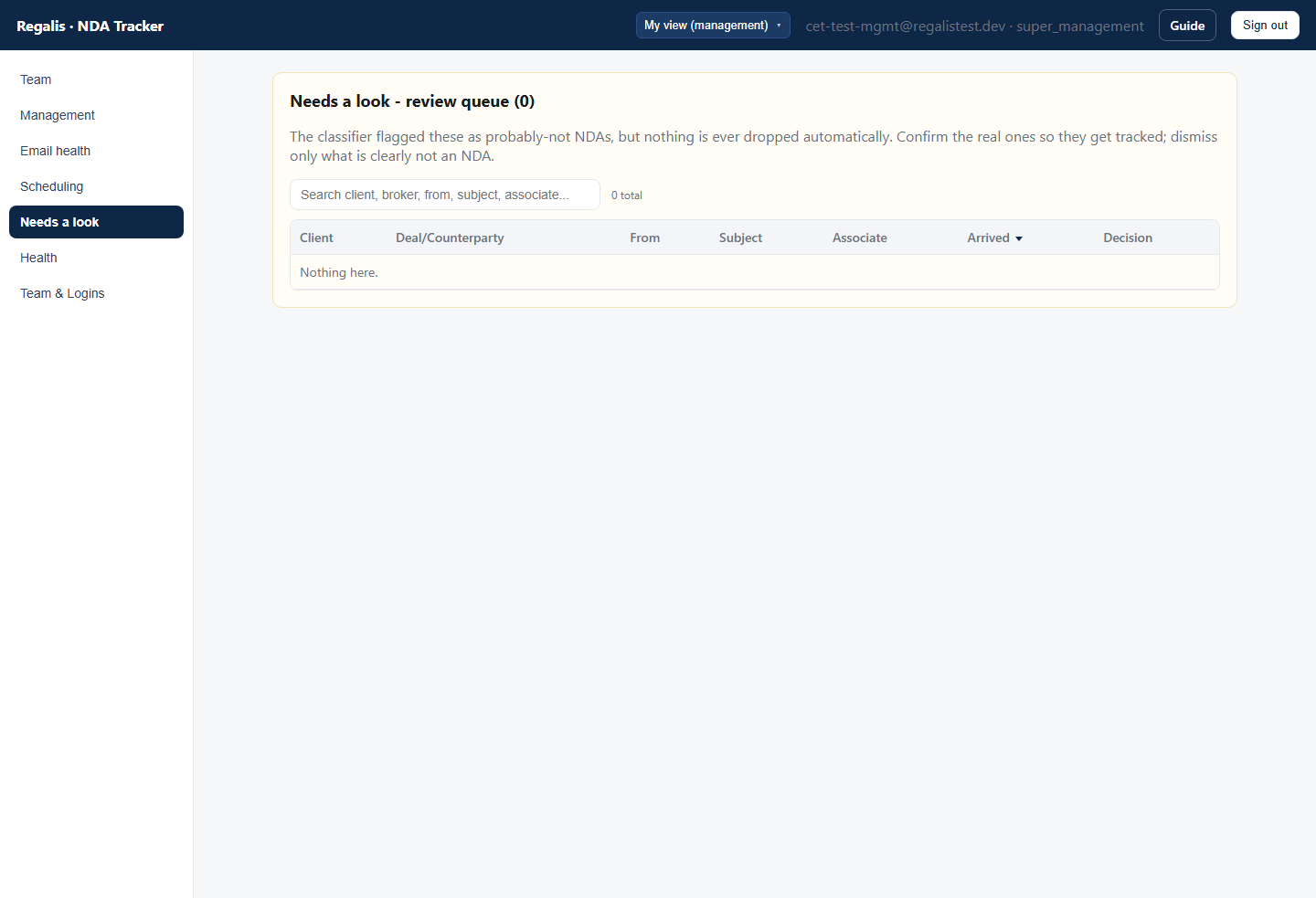
For each item: Track it (real NDA → track), Already signed (done), or Not an NDA (dismiss). Keeping this queue empty ensures no real NDA is missed.
Logins (administration)
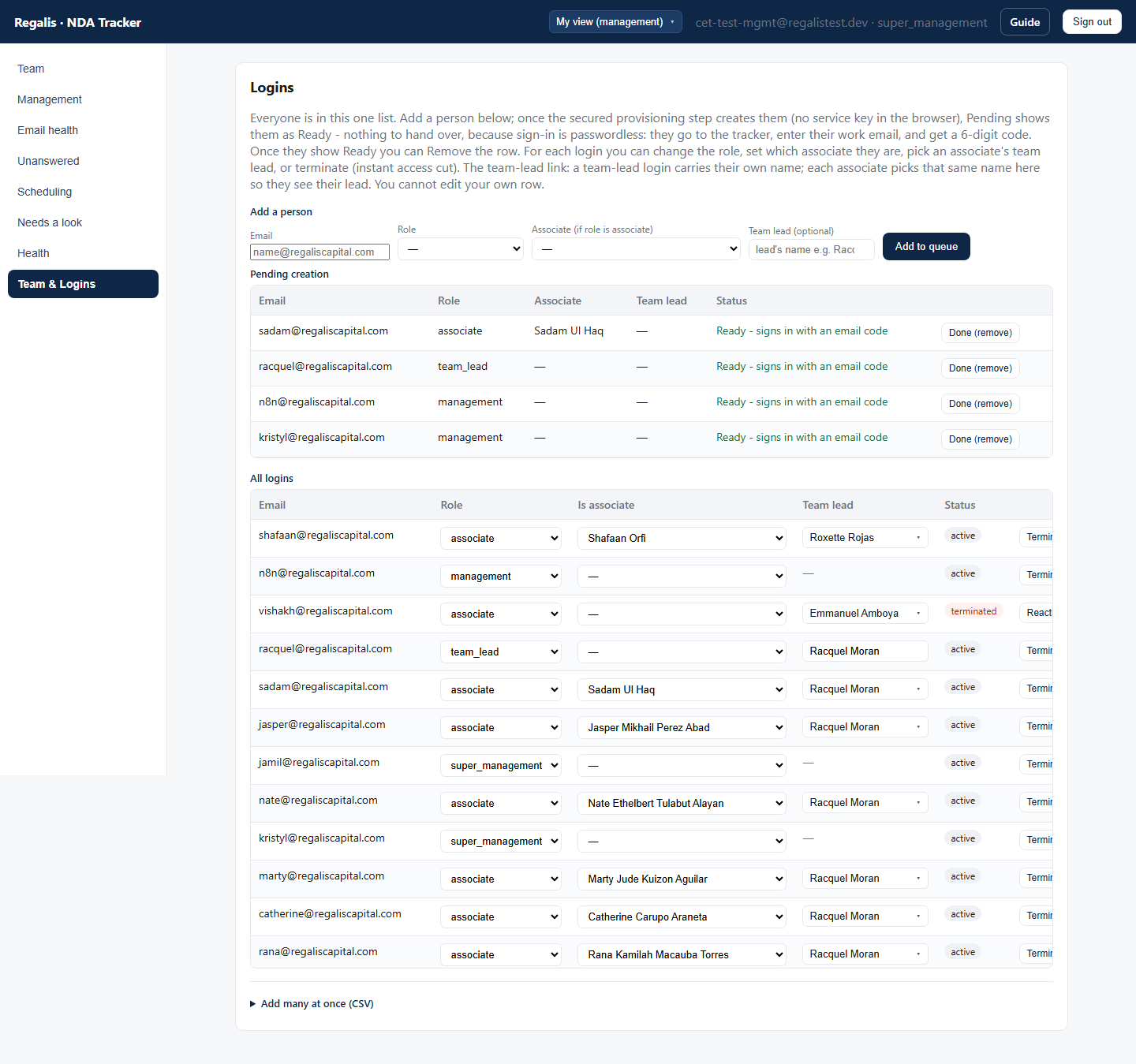
Everyone is managed in one place: a single Logins page lists every account in one list, with the “Add a person” form and bulk CSV import on the same page. There is no separate list to keep in sync. When you add a person they appear in that one list right away; their login is created automatically within about a minute, and then they sign in with an emailed 6-digit code.
Every login, inline-editable
The one list shows every account; each field is editable in place and changes are instant and logged. There is no Save button: the moment you change a field it is saved, and a “Saved” note pops up at the bottom of the screen to confirm it. If a change is rejected you get a “NOT saved” note instead; in that case nothing changed.
| Field | What it does |
|---|---|
| Role | One of associate, team_lead, management, super_management, ma_coordinator, ma_coordinator_lead. Controls which tabs and data they see (super_management = full, incl. Logins; management = everything except logins; ma_coordinator = Scheduling for only the items they set up; ma_coordinator_lead = Scheduling for the coordinators assigned to them). |
| Is associate | For an associate login, which associate (by name) they are — this scopes them to that associate’s clients. |
| Team lead | On a team_lead row, set the lead’s own name (e.g. Racquel Moran). On an associate row, pick that associate’s team lead from the dropdown (the same names) — that matching name is the key that ties an associate to their lead (set the associate’s “Is associate” first, then their team lead becomes pickable). On an ma_coordinator row, this same column shows a coordinator lead dropdown: pick which coordinator lead that coordinator reports to. That is what lets the coordinator lead see that coordinator’s scheduling items. |
| Status / Terminate | Terminate cuts all access immediately; Reactivate restores it. You cannot edit your own row. |
Adding a person (step by step)
- On the Logins page, under Add a person, enter their Email and pick a Role. If the role is
associate, also pick which Associate they are. Optionally set their Team lead (or, for a coordinator, their coordinator lead). - Click Add. They appear in the one list right away.
- Within about a minute, their login is created automatically. There is nothing to hand over — they sign in on their own with their work email and a 6-digit code.
- Tell them they can sign in (work email → 6-digit code). That is it — no extra step to “finish” or clear them from a queue.
To change someone’s role, reassign their associate, team lead, or coordinator lead, or terminate them, edit their row in the same list — those changes take effect immediately.
Promoting an associate to team lead (step by step)
When an associate becomes a team lead, their login needs three changes, all on the same Logins page. Each one saves the moment you make it (watch for the “Saved” note):
- On their row, change Role to
Team lead. - Once the role is Team lead, that row’s Team lead column turns into a type-in box. Type the person’s own full name there (e.g. Racquel Moran). This name is the key that ties their team to them, so spell it exactly one way and use that same spelling everywhere. One hard rule: no two team leads may ever share the same exact name. If two people would collide, add a distinguisher (like a middle initial) to one of them; leads with identical names would see each other’s teams.
- Give them a team: on the row of each associate who now reports to them, pick the new lead’s name in the Team lead dropdown. Until at least one associate who has clients points at them, their Team NDAs tab is empty.
Two follow-ups that are easy to miss:
- They must sign out and sign back in. A login picks up its role and team assignment at sign-in, so the new team-lead view only appears after they sign in again.
- Their old clients: client-to-associate assignments come from Bitrix and sync into the tracker automatically, so reassign their old clients in Bitrix and the tracker follows on its own. This part is not instant: the tracker picks up Bitrix changes on its next scheduled sync, so allow some time before they show. If they keep working their own clients while leading, leave their Is associate value set and also pick themselves as the team lead on their own associate mapping, so their own clients show inside their team view.
Adding people in bulk (the login CSV)
For many people at once, open Add many at once (CSV) at the bottom of the Logins page, click Download CSV template, fill one row per person, then upload it to check it. Valid rows are created by the secured provisioning step (the service key never touches the browser). For one or two people, the Add a person form above is simpler.
The columns
| The person’s login email. | |
| role | Exactly one of associate, team_lead, management, super_management, ma_coordinator, ma_coordinator_lead (lowercase, with underscores). |
| associate_name | Associate rows only. The associate’s name as it appears in the roster, so they are scoped to their own clients. Leave blank for other roles. |
| lead_name | The team lead’s person name (e.g. Racquel Moran) — the link between a lead and their associates. On a team_lead row it is that lead’s own name; on an associate row it is the lead they report to. Use the exact same name on the lead’s row and on each of their associates’ rows. |
| coordinator_name | M&A coordinator rows only. The coordinator’s name (matches the M&A Coordinator value in Bitrix, e.g. Shaine). Leave blank for all other roles, including ma_coordinator_lead. You connect a coordinator to their coordinator lead with the dropdown on the Logins page after the logins exist, not in this CSV. |
Example
| role | associate_name | lead_name | coordinator_name | |
|---|---|---|---|---|
| jasper@regaliscapital.com | associate | Jasper Abad | Racquel Moran | |
| racquel@regaliscapital.com | team_lead | Racquel Moran | ||
| shaine@regaliscapital.com | ma_coordinator | Shaine | ||
| clarisse@regaliscapital.com | ma_coordinator_lead | |||
| manager@regaliscapital.com | management | |||
| founder@regaliscapital.com | super_management |
Creating a team-lead account: set role to team_lead, put the lead’s own name in lead_name (e.g. Racquel’s row has lead_name = Racquel Moran), and leave associate_name and coordinator_name blank.
lead_name.Validation flags any row whose role is wrong, or whose associate / coordinator / lead name does not match the system, before anything is created.
Mailbox health
| Mailbox gaps | Monitored clients whose mailbox we cannot read yet (wrong/missing address, or access not granted). The associate column tells you who to chase. Resolve so their NDAs get tracked. |
| Clients with no associate | Monitored clients not yet assigned to anyone — assign them so their NDAs are worked. |
| Mailbox sync health | Per-mailbox last-sync status; rows in error or never-synced need attention. |
Your daily & weekly routine
Every day
- Check the Overview KPIs — watch Overdue and Likely already signed trends.
- Review Overloaded associates and rebalance if needed.
- Clear the NDAs to review queue (or confirm a team lead is).
Every week
- Work Mailbox health: resolve mailbox gaps and no-associate clients.
- Provision any new logins and confirm assignments are current.
- Sanity-check “Signed this week” and the overall open trend.
Scheduling & M&A coordinators
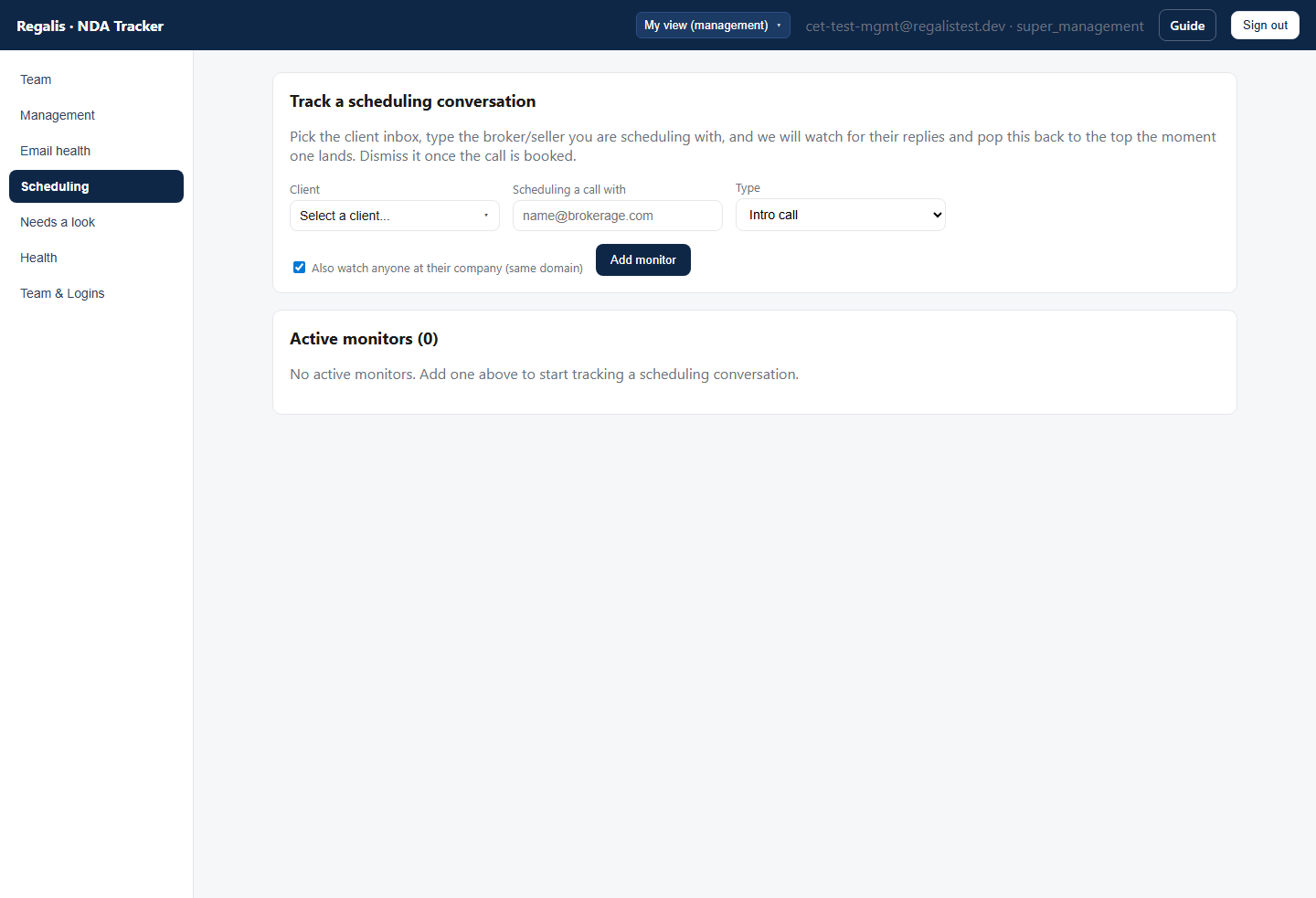
The Scheduling tab tracks calls you are trying to book with brokers and sellers, so you get pinged the moment they reply — across every client inbox at once, without logging into each one. M&A coordinators see only this tab, and they see only the scheduling items they personally set up. Associates and team leads also have it for their own clients; management sees all of it.
Register a call you are scheduling
- Open the Scheduling tab.
- Under Track a scheduling conversation, pick the client inbox: click the picker and a panel opens listing every monitored client, with a search box at the top — type a few letters to narrow the list, then click the client (Escape or a click outside closes the panel).
- In Scheduling a call with, enter the broker or seller’s email address (email only).
- Pick the type (Intro call / Seller call / Other).
- Leave “Also watch anyone at their company” ticked to also catch replies from a colleague at the same brokerage (common when you email one person and someone else answers).
- Click Add monitor. It appears under Active monitors as “Watching.”
Working the queue
On the hourly check, when a relevant reply lands the monitor jumps to the top marked Reply in - handle it. (A quick AI check filters out marketing and noise; it is tuned to surface anything that might be about scheduling rather than risk missing a real reply.) For each one:
| Scheduled / done | The call is booked — clears the monitor and stops watching it. |
| Keep monitoring | Reply handled but not booked yet (more back-and-forth) — returns it to watching, and it pops back up on the next reply. |
Monitors are ordered by most recent reply, so anything needing attention sits at the top.
Daily routine (coordinators)
- Register every new call you are trying to book, as you send the outreach.
- Watch #seller-call-updates-and-requests in Slack — you are pinged the moment a reply lands, with a link straight to the tracker.
- Clear anything marked Reply in - handle it: book the call then Scheduled / done, or Keep monitoring if it is still in motion. Always clear it in the dashboard so it leaves the queue.
- Scan for monitors sitting with no reply for a while — those may need a nudge from your side.
How it works (plain English)
- Where the NDAs come from. The tracker reads each client’s deal mailbox (read-only) and uses AI to spot NDA requests and signed confirmations. It runs once an hour, processing only new mail, so the board stays current automatically.
- When something is signed. If the system can confidently match a signed confirmation to its request, it closes the item for you. When it finds likely-but-not-certain evidence (common when the signed copy comes from a different e-sign vendor), it adds the ⚠ likely signed hint instead of hiding it — so a real outstanding NDA is never auto-removed.
- Why your one-click clears matter. The hint plus your Mark handled click is what keeps the board accurate. Working the “likely already signed” card daily is the single biggest thing that keeps the counts trustworthy.
- The window. Detection focuses on the last ~14 days of mail, so the work is always current.
Glossary
| Term | Meaning |
|---|---|
| Waiting to be signed | A real NDA the client still needs to sign (outstanding). |
| Waiting on other side | The client signed; waiting for the broker/seller to countersign. |
| Marked done (confirming) | Marked handled; the system is confirming it is fully signed. |
| Done / signed | Confirmed signed — closed. |
| Passed | Deal not pursued / dead — closed. |
| Not applicable | Marked as a false positive (not a real outstanding NDA) — closed; the feedback is reviewed monthly to tune detection. |
| Needs a look / Reviewing | The classifier was unsure; needs a human decision in the review queue. |
| ⚠ likely signed | Probable signed evidence found; review and clear. |
| On track / Approaching / Overdue | Urgency in business hours: new / past 6 hours / past ~3 days. |
| Arrived | When the request email actually arrived (real time, not detection time). |
| Chased | When you last nudged the broker; goes “stale” after a week. |
| Roles | associate (own clients), team_lead (their team), management (everything except logins), super_management (everything incl. Logins), ma_coordinator (Scheduling for only the items they set up), ma_coordinator_lead (Scheduling for the coordinators assigned to them). |